SnagBane
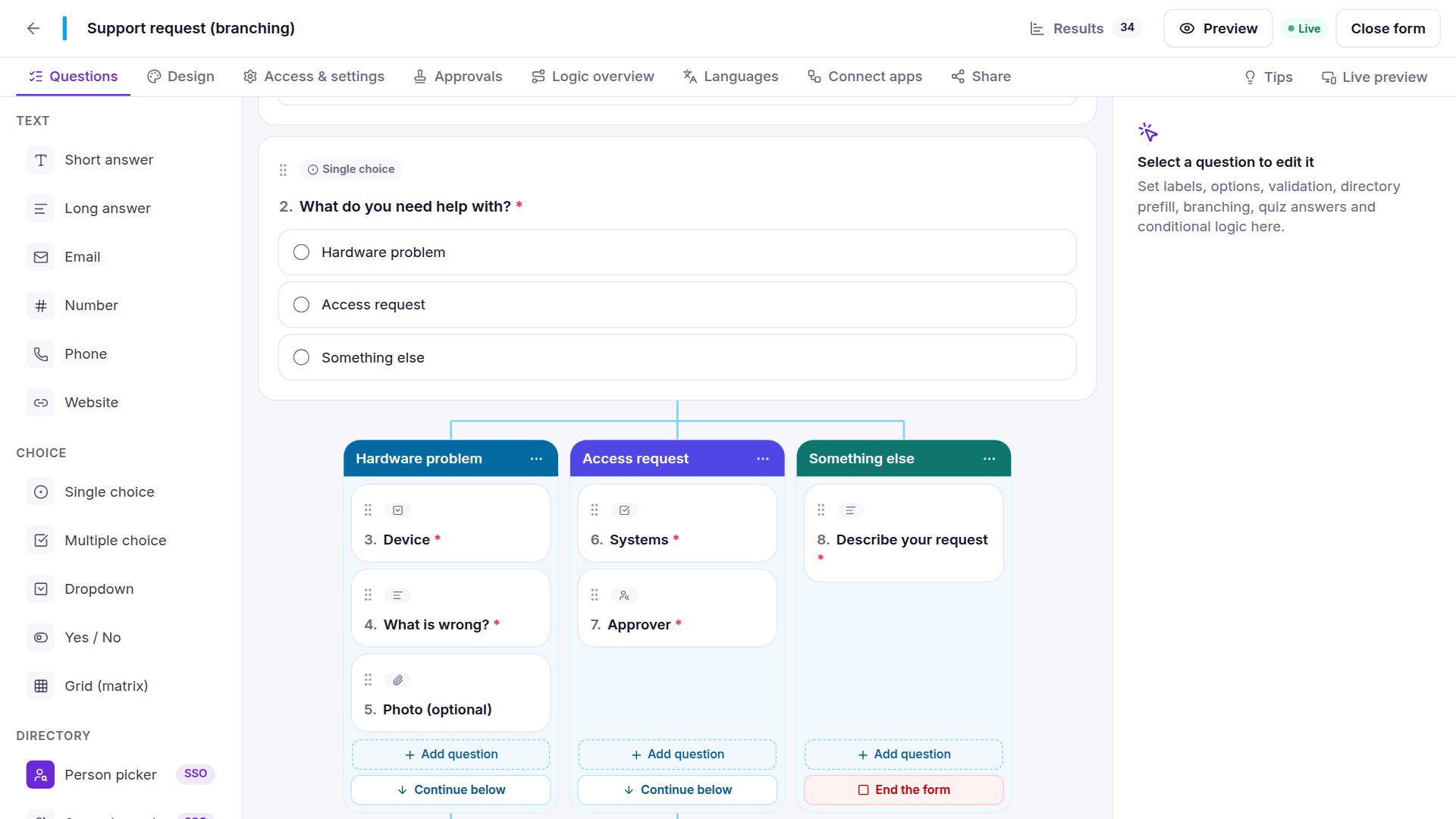
Branching in SnagBane shows each answer's questions as columns side by side, like a switch in Power Automate. Pick a single-choice, dropdown or yes/no question, click Add branching, and every answer gets its own column of questions that joins again below. You see the whole form's logic at once instead of following “go to section” rules up and down. Branching is on every plan, including Free.
How it works
- Select a single choice, dropdown or yes/no question and click Add branching.
- Lines go out into one column per answer. Add questions to a column with + Add question, by dragging, or with right-click → Move to column….
- The questions below the columns are the shared part everyone answers.
A real example — Leave type:
| Answer | Column |
|---|---|
| Annual leave | No extra questions — straight on |
| Sick leave | From and To |
| Unpaid, Other | Reason, then End the form |
| Everyone | Who covers for you? and Manager (below the columns) |
What you can do with columns
- Names follow the answers. A column is named after its answers (“Unpaid, Other”) until you rename it.
- Several answers, one column. Drag one column's header onto another to combine them; Split into one column per answer separates them again.
- Continue or end. The button under each column switches between Continue below and End the form. An empty column sends that answer straight on.
- Same page or its own section. Columns appear right under the answer by default; for long branches choose Open as its own section to give respondents a separate page.
- Remove branching keeps every column's questions, one after another.
For more complex forms
- Sections with routing: on a section break, set where respondents go next, with rules that combine several conditions (all / any; numbers, text, empty or answered).
- Show only if… conditions on single questions — see conditional logic and calculations.
- The Logic overview tab lists every branch, rule and conditional question in plain language — useful for a colleague who reviews the form.
Safe by design
Answers from columns the respondent didn't take are never saved, and the server recalculates the path when the form is sent, so hidden questions can't be filled in by editing the page. If the branching question is left unanswered (it's optional, or hidden by a condition), all columns are skipped.
Frequently asked questions
Which questions can branch?
Single choice, dropdown and yes/no questions. For other conditions — numbers, dates, text — use Show only if… conditions or section routing rules.
Can a branch end the form?
Yes. Set the column to End the form and respondents who give that answer submit right there.
Can I branch inside a branch?
Not yet: columns are one level deep. Use conditions or sections for further logic inside a column.
Do branches work with approvals?
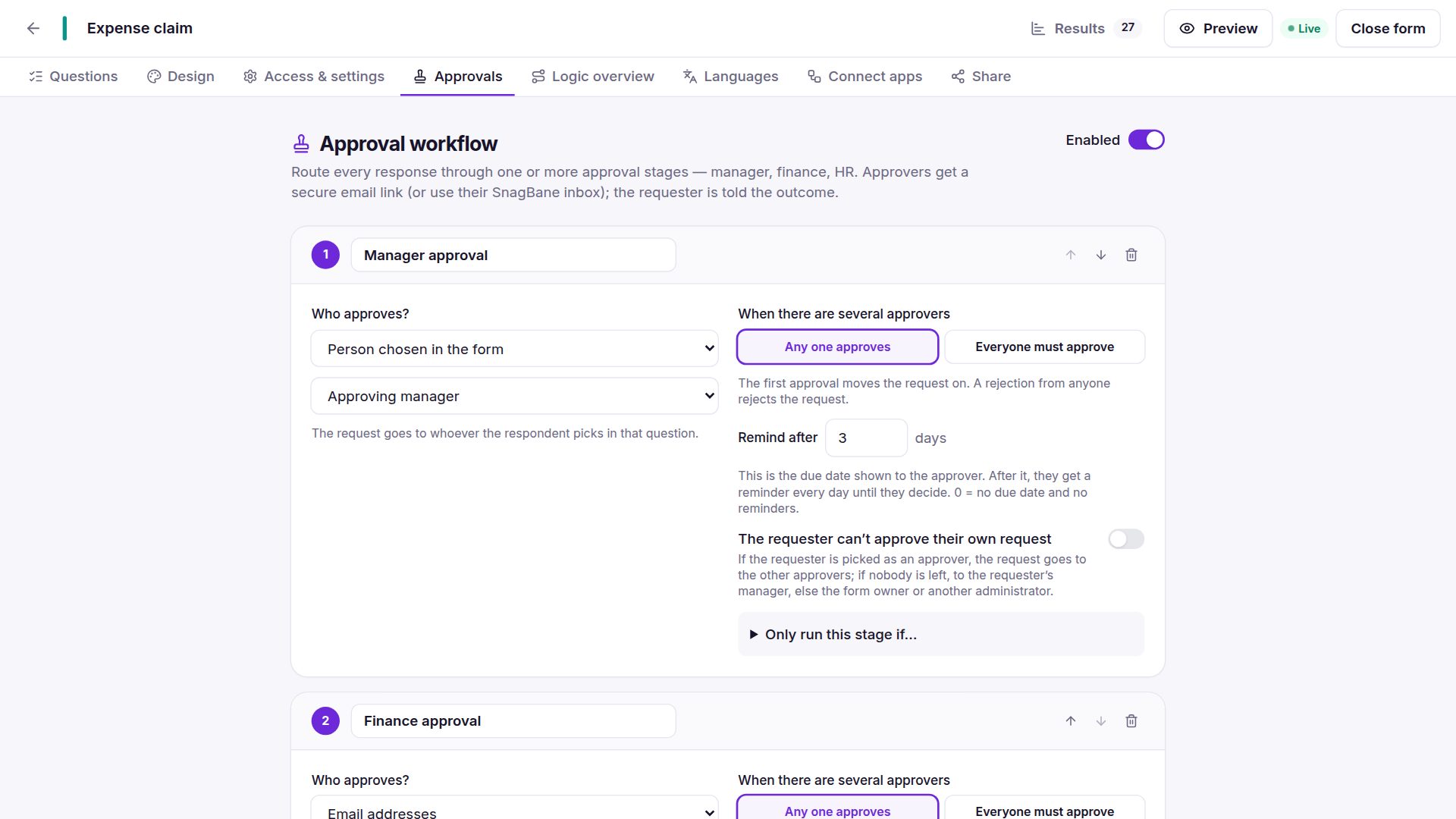
Yes. Approval stages can have their own conditions on the same answers — for example, HR approves only sick leave over 10 days. See approval workflows.
Full details are in the branching documentation.