SnagBane
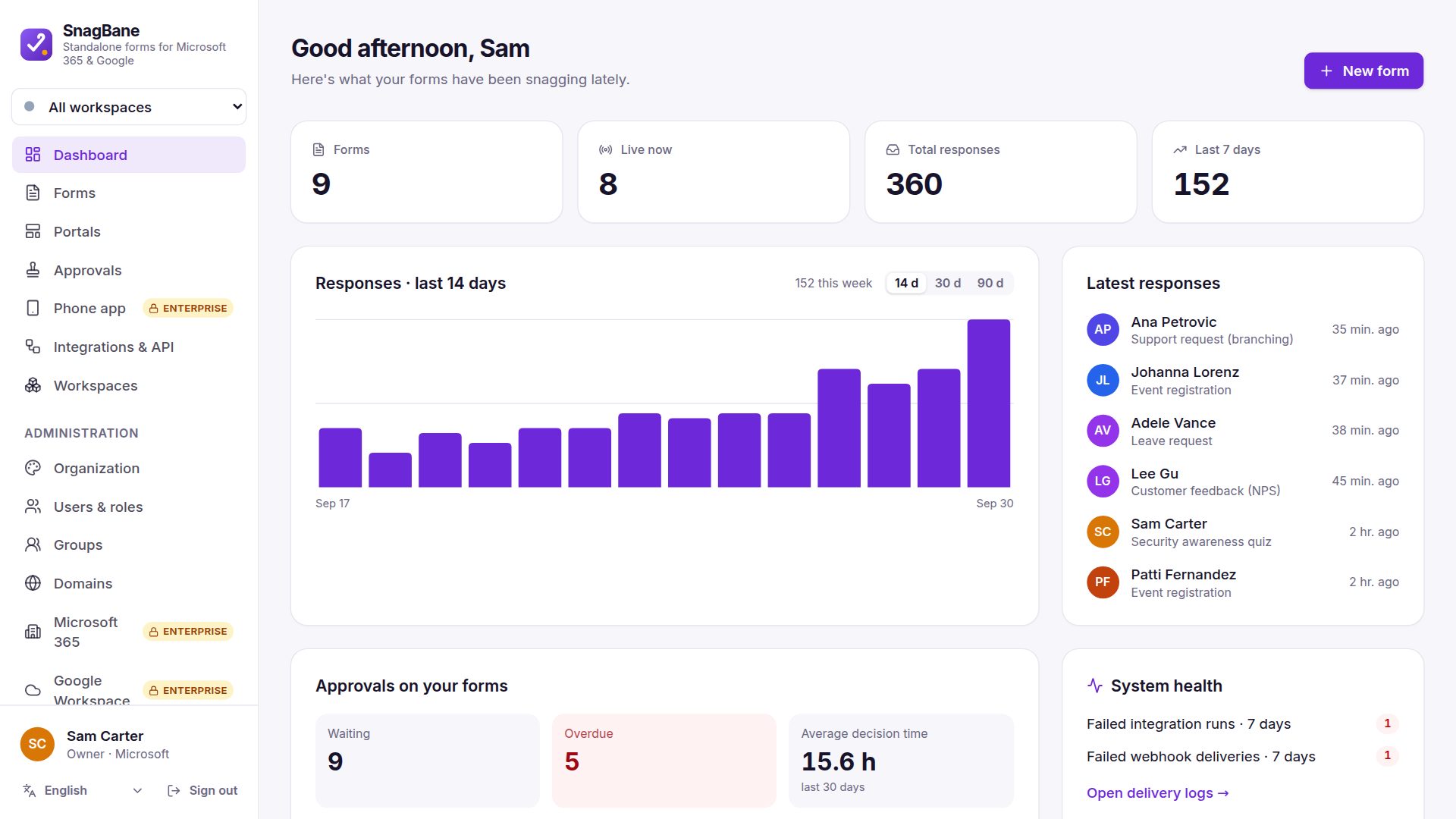
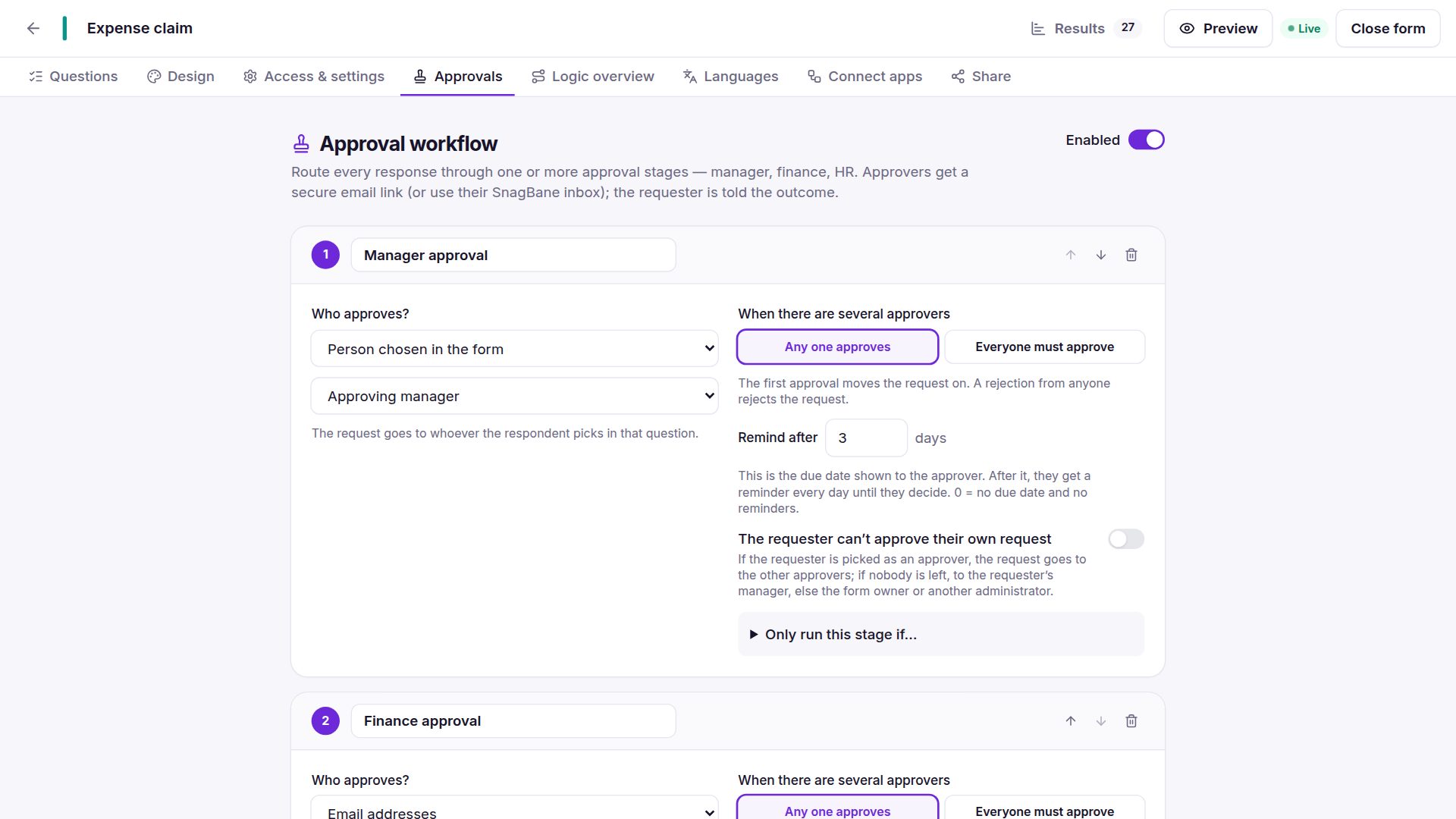
 adds approval workflows to any form without building a separate flow. Open the form's Approvals tab, add stages (for example the requester's manager, then Finance only when the total is over 500), and every request goes to the right people in the right order — with reminders, an overdue list and a full record. Multi-stage approvals are included on every plan, including Free.
How an approval works, step by step
- Someone sends the form. The response becomes pending and the first stage starts. Stages whose condition doesn't match are skipped.
- The stage's approvers get an email with Review & approve and Reject buttons — personal, single-use links — and see the request under Approvals in SnagBane.
- With any, one decision completes the stage; with all, everyone must approve. Rejecting always needs a comment.
- Approved goes to the next stage; after the last stage the request is approved. Any rejection ends it as rejected.
- The requester is emailed the outcome and follows every step live under My requests on a portal.
Who can approve a stage
| Approver | How it's chosen | Plan |
|---|---|---|
| A person picked in the form | A person-picker question (Who is your line manager?) | Free |
| The requester's manager | From Microsoft 365, Google Workspace or Okta — or the manager an admin entered in the person's profile | Free (profile) / Business (directory) |
| Specific people | People you choose once for the stage | Free |
| Email addresses | Anyone with an email, no account needed | Free |
| A group | A SnagBane group, or one linked to Entra ID, Google, Okta or SAML; members are read when the stage starts | Free (SnagBane groups) / Business (directory groups) |
Approvers don't need a SnagBane account: they can decide from the email link. Files and signatures attached to the request open from the approval page, even for approvers who have no access to the form itself.
Conditions per stage
Each stage can have its own condition based on the answers:
- Finance only when Total is over 500.
- IT security only when Access type is Administrator.
- HR director only when Leave days is more than 10.
Because amounts, numbers and dates are stored as real values, conditions compare them correctly. A stage with no matching condition is skipped and shown as skipped in the request's steps.
When an approver doesn't answer
- Reminders and due dates per stage — overdue approvers get reminded automatically.
- Overdue list on the dashboard, with Remind now (at most once an hour).
- Change approver — an administrator or the owner of the form's workspace hands the waiting approval to someone else. The new approver is notified at once, the old link stops working and the audit log records who changed it, from whom to whom, and why.
- If an approver can't be resolved (no manager in the directory, an empty person question), the task goes to the form owner — nothing is approved automatically by mistake.
No approving your own request
On by default for new stages: if the requester is one of the approvers, the task goes to the others; if nobody is left, to the requester's manager, else the form owner, or another administrator when the owner is the requester. This also applies to administrators. Emailed links follow the same rule — a link used while someone else is signed in still decides as the person it was sent to.
What happens next: actions after the decision
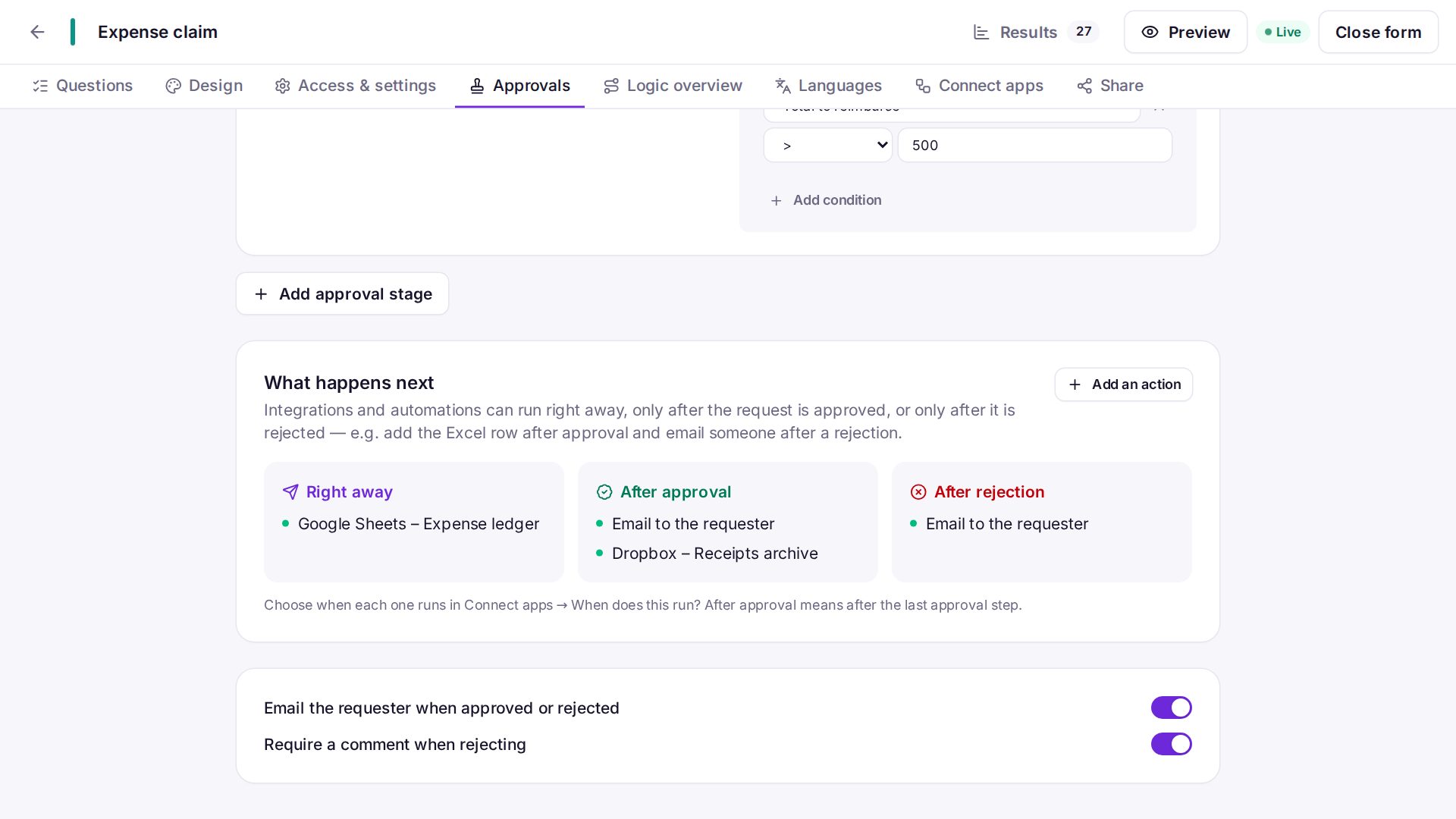
Every integration and automation chooses When does this run?:
| Option | Runs | Example |
|---|---|---|
| Right away | When the form is sent | A Teams message new request |
| After approval | Once, after the last stage approves | Add the Excel or SharePoint row, create the Jira issue, put the leave in the calendar, send the contract for e-signature |
| After rejection | When an approver rejects | Email the team lead, log it in a sheet |
| More events | Several events, edits, approval requested | Advanced automations |
On a form with approvals, new integrations that write data start as After approval, so a row is never created for a request that is later rejected. The What happens next list on the Approvals tab shows everything that will run. Merge tags {{event.by}} and {{event.comment}} put the last decision into emails and messages.
Withdrawing, correcting and resubmitting
- The requester can Withdraw a request while it's waiting; form editors and administrators can Stop approval. Waiting approvers are told, reminders stop and no integration runs.
- If the form allows editing after sending, a rejected request can be corrected with its edit link and goes through approval again from the first stage.
Frequently asked questions
Do approvers need a SnagBane account?
No. Every approver gets a personal, single-use link by email and can approve or reject from it. With an account they also get an approvals inbox, bulk approve and — on Business — the phone app and Microsoft Teams notifications.
How many approval stages can a form have?
As many as you need. Each stage has its own approvers, its own rule (any one or everyone) and an optional condition.
Can approvals use the manager from Microsoft 365 or Google Workspace?
Yes, with Business: SnagBane reads the requester's manager from Entra ID, Google Workspace or Okta. On Free, the manager an administrator enters in a person's profile works the same way.
Is this a replacement for Power Automate approval flows?
For form-based requests, yes: stages, conditions, reminders, reassigning and the actions after the final decision are built in, so there is no flow to build per form. Power Automate, Zapier, Make and n8n can still be triggered by approval events.
Is every decision recorded?
Yes. Requests, decisions with comments, reminders, reassignments and withdrawals are in the audit log. On Enterprise it can be streamed to your SIEM.
See the approvals documentation for every option, or start from one of the 37 templates with approvals already set up.