SnagBane
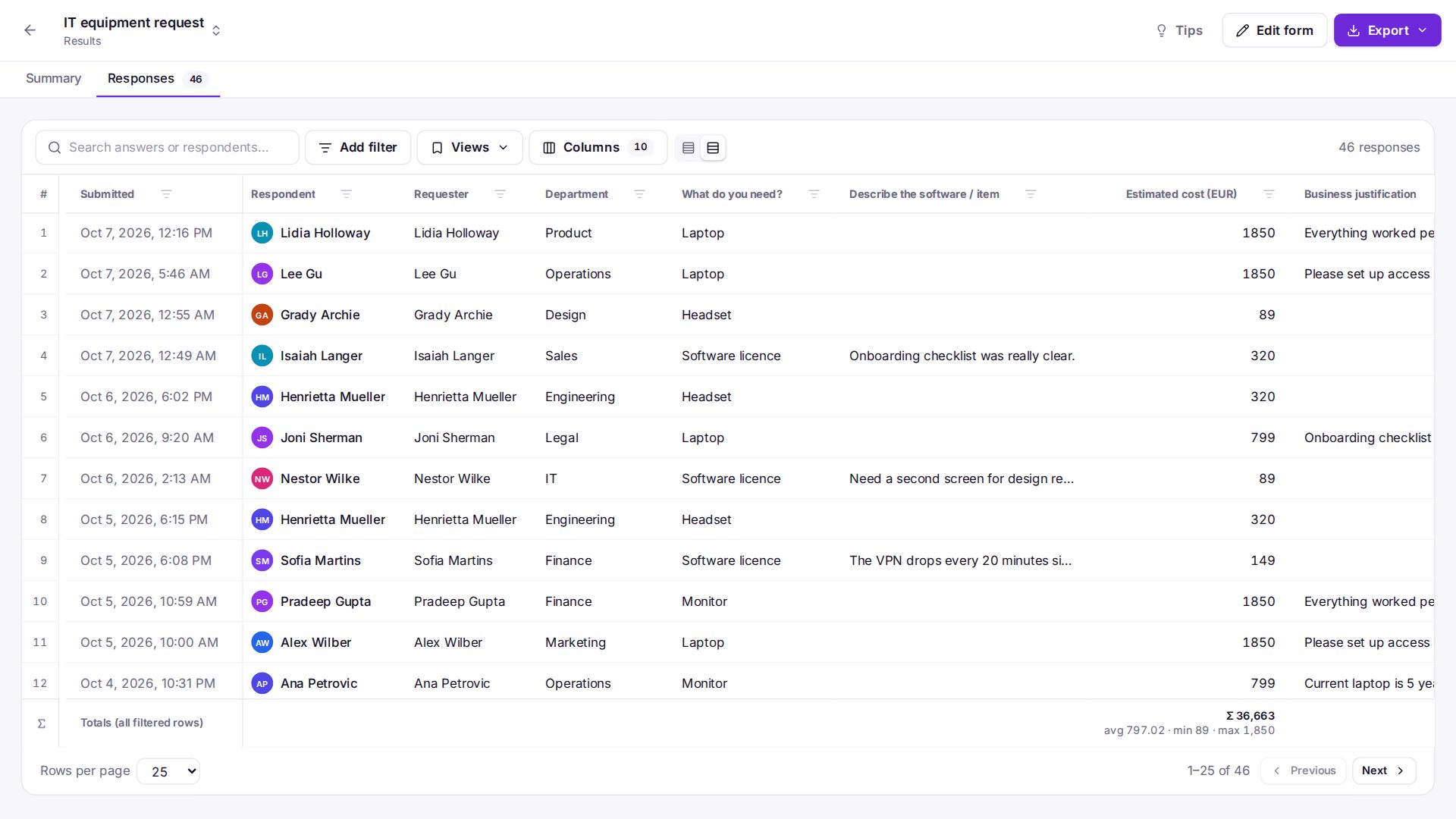
Every SnagBane form has two result views: a Summary and a spreadsheet-style Responses table. The Summary shows key figures and a card per question; the table sorts and filters like Excel, saves views and exports exactly what you filtered to Excel, CSV or JSON. Results are on every plan, including Free.
Summary
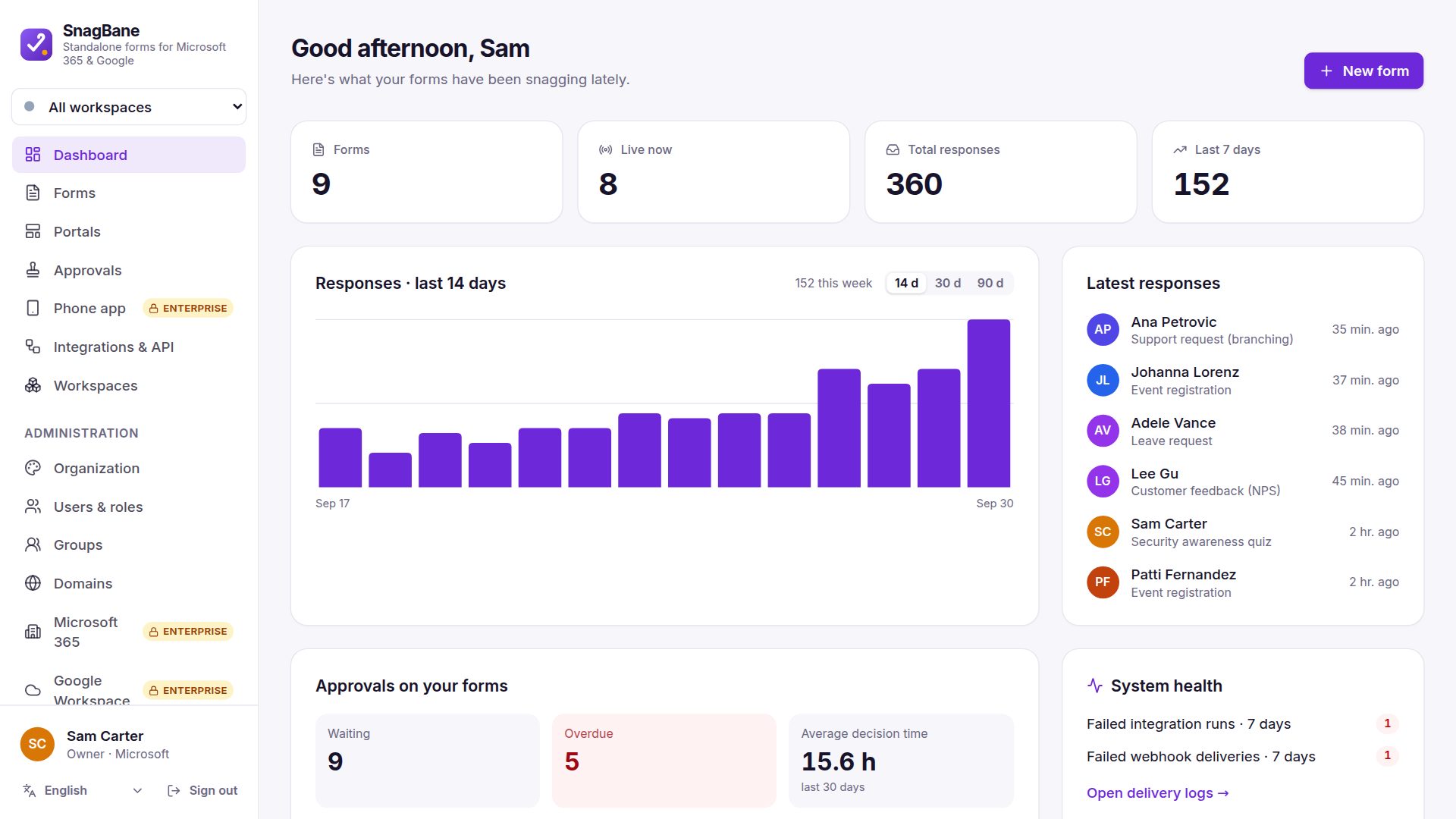
- Key figures — responses (with the change against the previous period), median and average time to complete, the last response and the approval rate.
- Responses over time — 7, 30 or 90 days or a year, plus approval status.
- A card per question — shares and the most chosen answer; average, median, lowest, highest and the distribution for numbers and ratings; Net Promoter Score with promoters, passives and detractors; the latest text answers; average place for rankings.
Click an answer's bar to filter the responses by it.
Responses: a table that works like Excel
| Action | How |
|---|---|
| Sort | Click a column title (again to reverse) |
| Filter by values | Tick values from a list with counts |
| Filter by condition | Text contains / is / starts with; numbers = ≠ > ≥ < ≤ or between; dates before, after, between or in the last N days; empty / not empty |
| Saved views | Keep filters, sorting and columns under a name, e.g. Approved, over 400 € |
| Export | Excel, CSV (UTF-8, opens correctly in Excel) or JSON — filtered rows in the table's order, or everything |
Click a row to see the full response with the respondent's department and manager, its approvals (remind or change the approver), a printable copy and a PDF. Spreadsheet exports are protected against formula injection, so an answer can't run as a formula in Excel.
Frequently asked questions
Can I export only some responses?
Yes. Filter the table first; Export offers the filtered rows with your columns, or all responses.
Do numbers stay numbers in Excel?
Yes. Numbers, amounts, sliders and calculations are exported as numbers, so you can sum them straight away.
How do I get responses into SharePoint or Google Sheets automatically?
Use the SharePoint list, Excel or Google Sheets integration (Business), or a webhook to any system, ideally set to run after approval.
See Responses & export in the documentation.