SnagBane
Power Automate is Microsoft's tool for approvals: you build a flow with the Start and wait for an approval action for each form or list. It's powerful and connects to almost anything. For a handful of processes it works well; with dozens of request forms, many teams find the flows hard to build, follow and maintain. Here is how it works and when built-in approvals are simpler.
How a Power Automate approval is built
Following Microsoft's tutorial, a typical approval flow:
- Starts from a trigger (for a form: a new response; in Microsoft's example: a new SharePoint list item).
- Reads details (the requester's profile).
- Runs Start and wait for an approval, assigned to an email address.
- Uses a Condition on the outcome.
- Sends an email and updates the list on each branch.
Sequential (one after another) and parallel approvals are separate patterns with their own documentation. Approvers respond from email, the Power Automate approvals center or the app.
Where it gets hard
| Topic | What Microsoft documents | What it means in practice |
|---|---|---|
| One flow per process | Each approval workflow is its own flow | Dozens of forms = dozens of flows to build, test and own |
| Long-running approvals | Flows that may run more than 30 days need approvals stored in Dataverse and two flows | Requests that wait for holidays or month-end need extra design |
| External approvers | Use Microsoft Entra guest users | Every outside approver needs a guest account |
| Changes | A new stage or threshold means editing the flow | Business teams depend on whoever built it |
None of this is a flaw — it's the price of a general automation tool. The question is whether your form approvals need that generality.
The built-in alternative
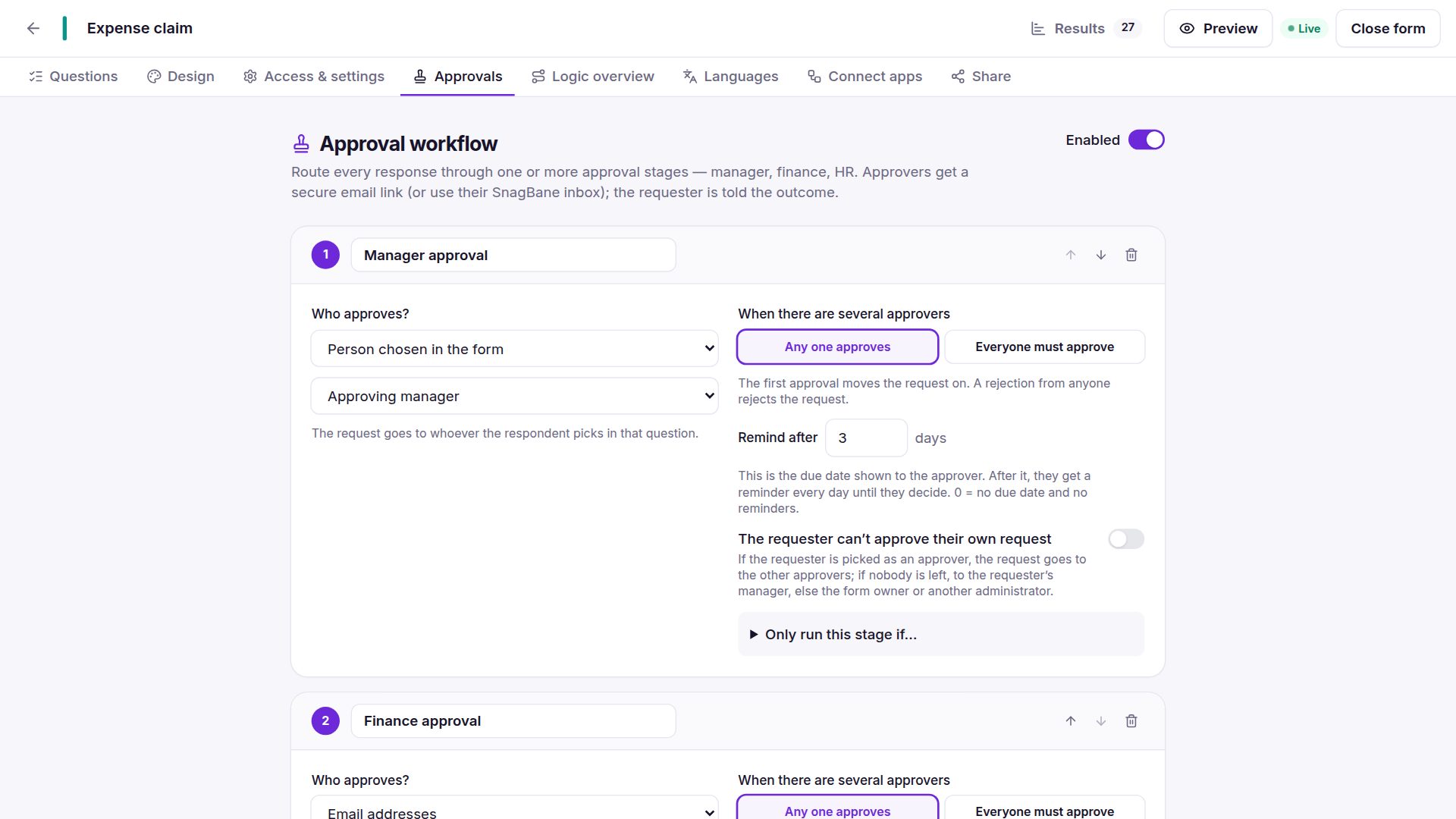
SnagBane puts the approval into the form itself:
| Need | In SnagBane |
|---|---|
| Stages | Add them in the form's Approvals tab — as many as needed |
| Manager first, Finance over 500 | A condition per stage |
| Any one or everyone | Per stage |
| Reminders, overdue list, reassign | Built in |
| External approvers | An email address — personal, single-use links, no account |
| Waiting for weeks | No time limit on an open request |
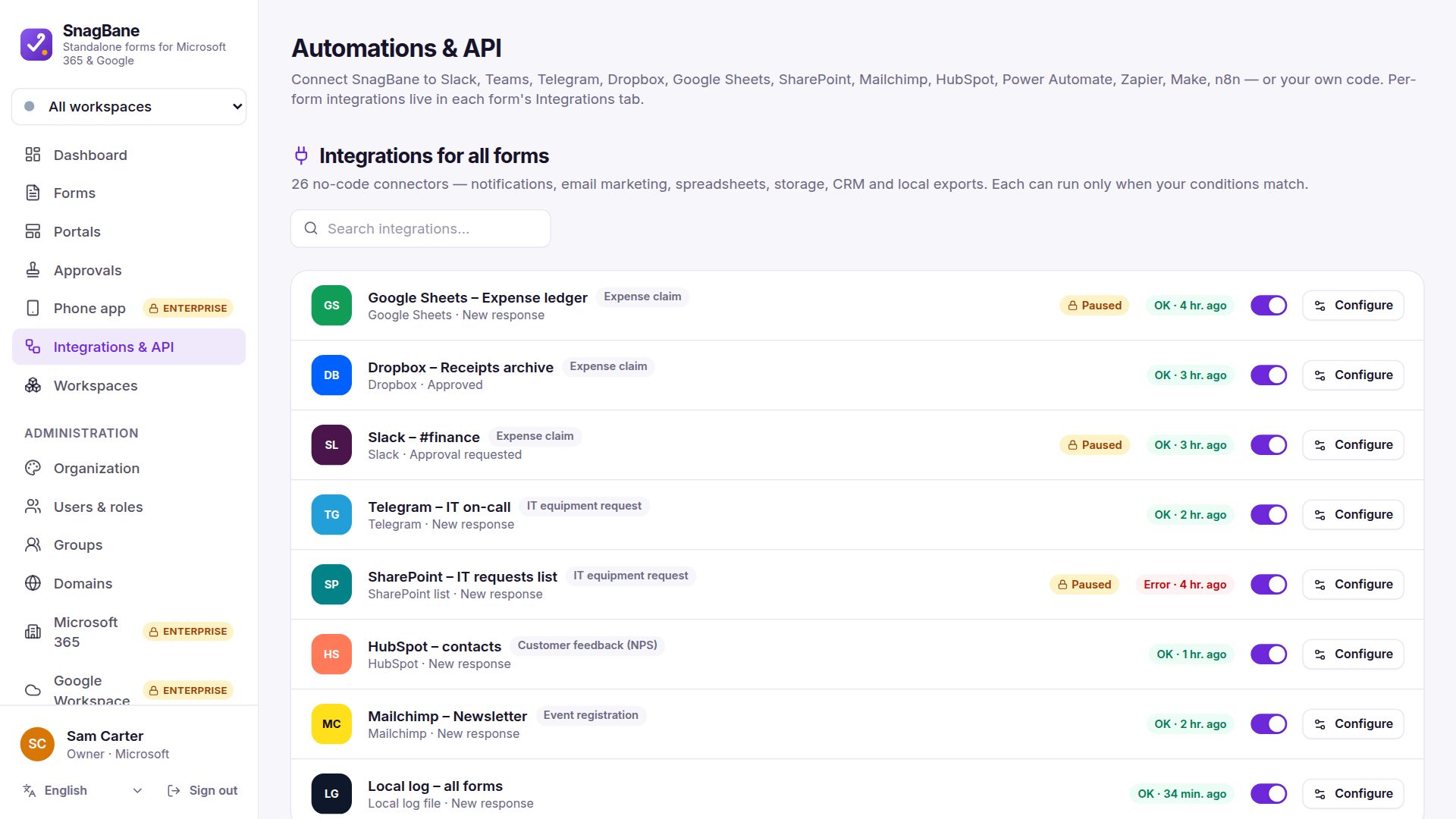
| After approval: SharePoint, Excel, calendar, Jira | Integrations set to After approval |
| Requester sees progress | My requests with every step |
Power Automate still fits next to it: the SnagBane connector triggers flows for anything else in Microsoft 365.
Which one to choose
Choose Power Automate approvals if you have a few processes, Power Platform makers to own the flows, and the approval is one step in a larger automation.
Choose SnagBane's built-in approvals if many forms need approval stages that business teams can change themselves, with reminders, reassigning and request status out of the box.
Frequently asked questions
Do we have to stop using Power Automate?
No. Use SnagBane for form approvals and keep Power Automate for other automations — a flow can even start when a SnagBane request is approved.
Can SnagBane approvals run in Teams?
Yes, with Business: approvers get a Teams notification and decide inside Teams. See approvals in Teams.
Do approvers need a licence?
Not for SnagBane: approvers can decide from the email link without an account. Power Automate and Microsoft are trademarks of Microsoft.
Sources
Facts about other products were checked against their public documentation on 15 October 2026. Products change — if something here is out of date, tell us at contact@snagbane.com and we will correct it.