SnagBane
InfoPath has reached end of life: the InfoPath 2013 client and InfoPath Forms Services in SharePoint Online lost support on 14 July 2026, and Microsoft provides no migration tool. You can move an existing form without rebuilding it by importing its .xsn template into SnagBane and adding the approval steps there.
For almost twenty years, InfoPath was how companies built forms on SharePoint: purchase requests, leave, IT access, travel. Here is what changed, what your options are, and how to move existing forms question by question in minutes instead of by hand.
What Microsoft announced
According to Microsoft's lifecycle page and Message Center post MC616550:
- After 18 May 2026, publishing new InfoPath forms, or updates to existing forms, to SharePoint Online was blocked.
- 14 July 2026 was the end of extended support for the InfoPath 2013 client and the retirement of InfoPath Forms Services in SharePoint Online. Existing published forms were to stay usable until that date.
- Microsoft said there would be no option to extend InfoPath Forms Services beyond that date, and no migration tool is provided.
- Its suggested replacements are Power Apps, Power Automate and Microsoft Forms. The Microsoft 365 Assessment tool can scan a tenant for InfoPath forms still in use.
Some administrators report forms still opening in their tenants after 14 July. That doesn't make them supported: Microsoft's position is that support has ended, so forms that still open today can stop at any time. Plan the move now rather than after they break.
Why InfoPath forms are hard to replace
An InfoPath form is rarely just a form. It usually carries:
- Many questions and repeating sections — line items, attendees, cost lines.
- Rules and approvals — who approves, in which order, and when Finance has to look at it.
- Data in SharePoint — every submission ends up as a list item or document that other teams rely on.
Microsoft Forms covers simple questionnaires but has no approval stages of its own. Power Apps and Power Automate can do everything, but every form becomes an app and a flow that someone has to build and maintain. That is why many migrations stall.
Moving a form to SnagBane
SnagBane reads InfoPath templates directly, so you start from your existing form instead of an empty page:
- In InfoPath Designer, open the form and either save the form template (.xsn) or use File → Publish → Export Source Files and zip the folder.
- In SnagBane, click New form → Bring your form and upload the file.
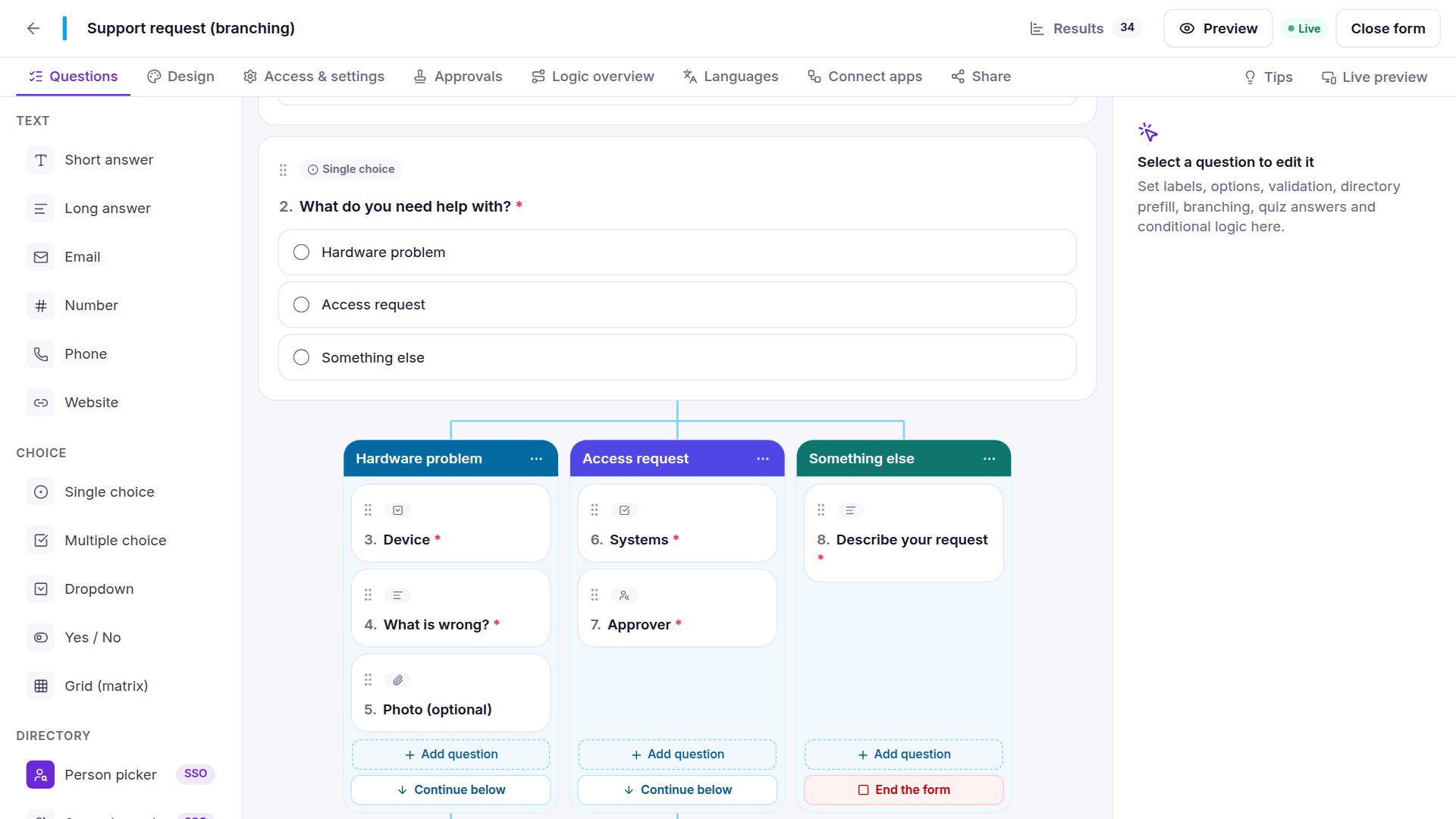
- Check the preview. The main view's controls become questions — text boxes, date pickers, drop-downs, option buttons, check boxes, attachments, people pickers and repeating tables — with their labels and required settings.
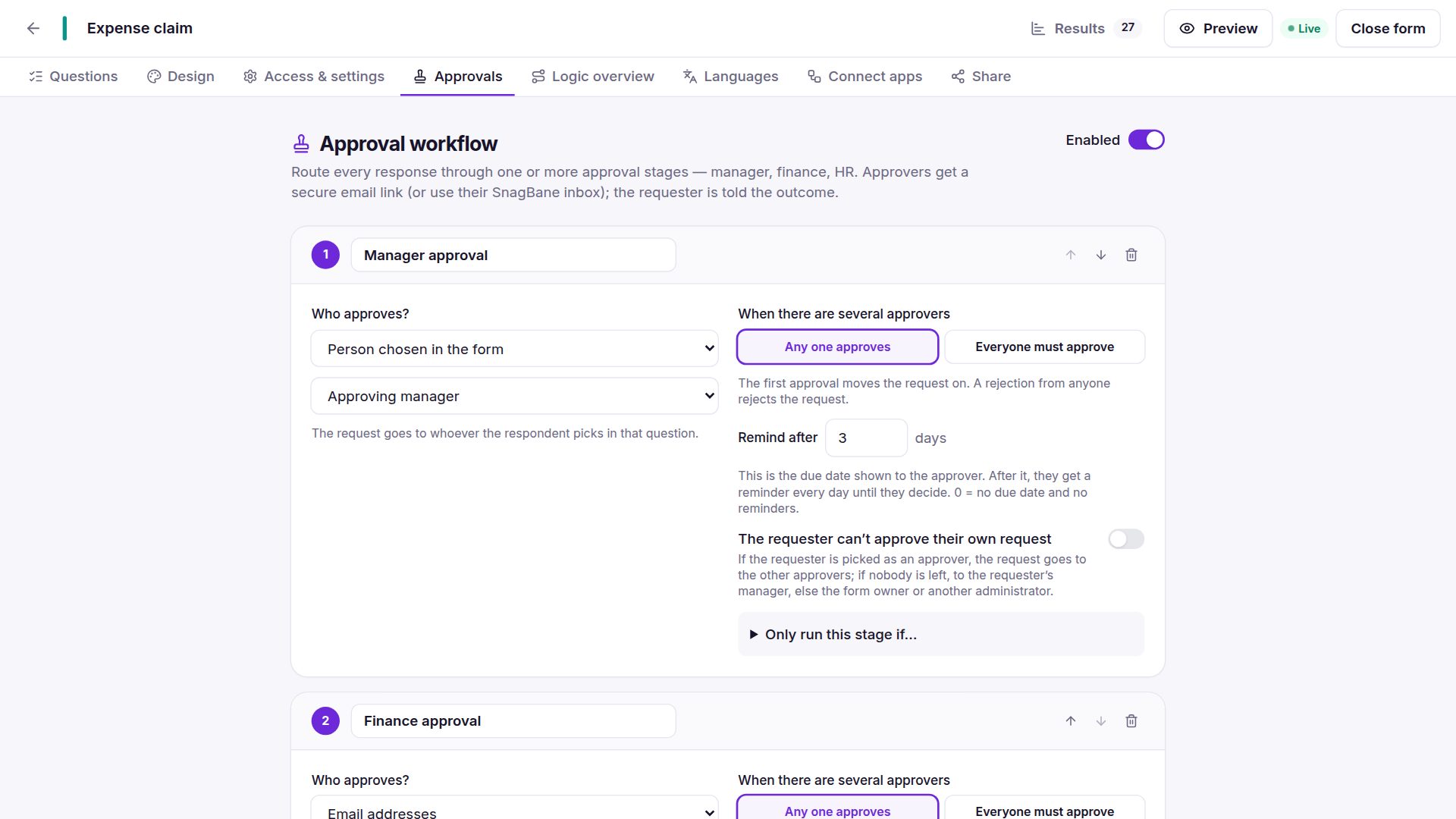
- Click Create form, then add what InfoPath kept in rules: approval stages, conditions and calculations. The preview lists what wasn't imported, so nothing is forgotten.
- Connect the destination: a SharePoint list or Excel row per request (Business), or email, webhooks and the other integrations on any plan.
The template is read entirely on your own server — nothing is sent anywhere.
What maps to what
| In InfoPath | Closest equivalent in SnagBane |
|---|---|
| Text box, rich text box | Short or long answer |
| Date picker | Date (or date range for leave and trips) |
| Drop-down, option buttons | Dropdown, single choice |
| Check box | Yes / No or multiple choice |
| Repeating table / section | Repeating table |
| File attachment | File upload |
| People picker | Person picker (directory search with Business) |
| Rules that show or hide sections | Conditions and branching columns |
| Workflow in SharePoint Designer or Power Automate | Built-in approval stages, reminders and an overdue list |
| Submit to a SharePoint list | SharePoint list or Excel integration, after the final approval |
Rules, calculations and lists filled from data connections are not imported; you set them up again with SnagBane's conditions, calculations and options from a list.
A realistic migration plan
- Inventory. Run the Microsoft 365 Assessment tool (or ask site owners) to list the InfoPath forms still in use and how often they are submitted.
- Start with the busiest form. One form that hundreds of people use proves the approach faster than ten rarely used ones.
- Import, then add approvals. Import the .xsn, add the stages (manager, then Finance over a threshold), and send the same SharePoint list the old form used.
- Run both for a short time. Point the old link to the new form once the first requests have gone through.
- Give employees one place. A SnagBane portal lists every form and lets people follow their requests, so the move also removes the “where is my request?” emails.
The Free plan covers teams of up to 25 people, which is enough to migrate and test the first forms. See what Free includes and the import documentation.
Frequently asked questions
Is InfoPath discontinued?
Yes. Microsoft ended support for the InfoPath 2013 client and retired InfoPath Forms Services in SharePoint Online on 14 July 2026. Since 18 May 2026, new InfoPath forms and updates to existing ones could no longer be published to SharePoint Online.
My InfoPath forms still open. Is that a problem?
Some administrators report that forms still open after 14 July. They are no longer supported, so they can stop working at any time and won't get fixes. Treat them as a deadline, not a reprieve.
Does Microsoft offer a migration tool?
No. Microsoft suggests rebuilding forms with Power Apps, Power Automate or Microsoft Forms, and points to the Microsoft 365 Assessment tool to find the InfoPath forms still in use in your tenant.
What does SnagBane import from an InfoPath template?
The questions of the main view: text boxes, date pickers, drop-downs, option buttons, check boxes, attachments, people pickers and repeating tables, with their labels and required settings. Rules, calculations and data connections are listed in the preview so you can set them up again.
Do submissions still go to SharePoint?
They can. With the Business plan, each request can create a SharePoint list item or an Excel row after the final approval, so the lists other teams rely on keep filling.
Sources
Facts about other products were checked against their public documentation on 15 October 2026. Products change — if something here is out of date, tell us at contact@snagbane.com and we will correct it.
- Microsoft Learn — InfoPath 2013 lifecycle
- Microsoft 365 Message Center MC616550 (mirror) — InfoPath 2013 client and InfoPath Forms Services in SharePoint Online will reach end of support in July 2026
- Lightning Tools — InfoPath was retired a month ago, so why are forms still working in SharePoint Online?